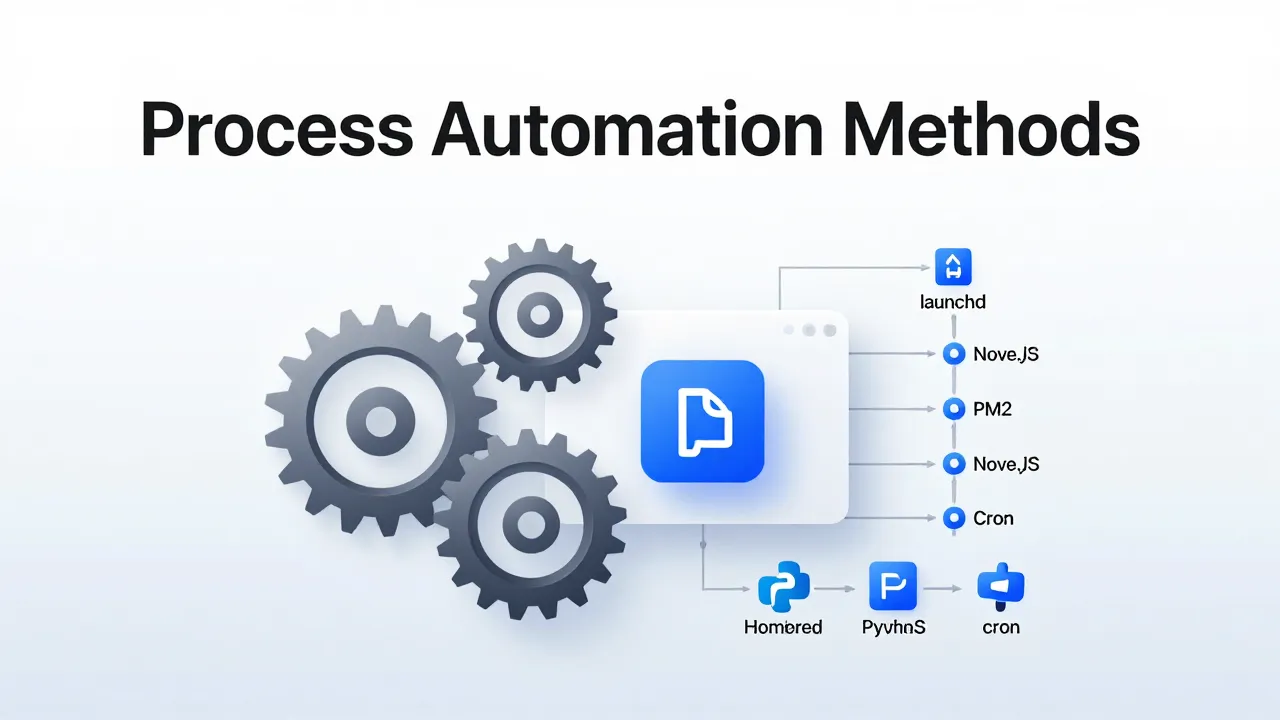
macOS provides multiple approaches to process automation and service management, each suited for different scenarios. From the native launchd system to language-specific process managers like PM2, understanding these tools is essential for running background services, scheduled tasks, and production applications on macOS.
Introduction
Process automation on macOS goes beyond simple scripting—it's about keeping services alive, scheduling tasks, and managing applications that run independently of user sessions. Whether you're a developer running a Node.js API, a sysadmin managing system services, or a data scientist scheduling Python scripts, macOS offers tools tailored to your needs.
This guide covers the primary process automation methods on macOS:
• launchd - macOS's native init system
• brew services - Simple Homebrew service management
• PM2 - Node.js production process manager
• Supervisord/Circus - Python process control
• Overmind - Development environment with Procfiles
• cron - Legacy Unix scheduling
Quick Comparison Table
Tool | Type | Use Case | Complexity |
------ | ------ | ---------- | ------------ |
**launchd** | Native system | Production services, scheduled tasks | High |
**brew services** | Wrapper | Homebrew services | Low |
**PM2** | Node.js | Node.js production | Medium |
**Forever** | Node.js | Simple Node.js | Low |
**Supervisord** | Python | Python/any language | Medium |
**Circus** | Python | Modern Python | Medium |
**Overmind** | Procfile | Development | Low |
**cron** | Unix scheduler | Legacy tasks | Low |
Native macOS: launchd
What is launchd
launchd is macOS's init system and service manager, equivalent to systemd on Linux. Introduced in Mac OS X 10.4 (Tiger), it manages daemons, agents, and scheduled tasks. Every process on macOS (except the kernel) is ultimately a child of launchd.
Key Components:
• launchd - The system service manager
• launchctl - Command-line interface for managing services
• LaunchAgents - User-level services (run when user logs in)
• LaunchDaemons - System-level services (run at boot, as root)
launchctl Command Reference
# List all loaded services
launchctl list

# Load a service
launchctl load ~/Library/LaunchAgents/com.example.service.plist

# Unload a service
launchctl unload ~/Library/LaunchAgents/com.example.service.plist

# Start a service
launchctl start com.example.service

# Stop a service
launchctl stop com.example.service

# View service logs
log stream --predicate 'process == "your-process-name"' --level debug
LaunchAgents vs LaunchDaemons
The distinction between LaunchAgents and LaunchDaemons is fundamental:
Aspect | LaunchAgents | LaunchDaemons |
-------- | -------------- | --------------- |
**When runs** | User login | System boot |
**Run as** | Logged-in user | root/system |
**Permissions** | User-level | System-level |
**GUI access** | Yes | No |
**Location** | `~/Library/LaunchAgents/` or `/Library/LaunchAgents/` | `/Library/LaunchDaemons/` |
LaunchAgents are for user-specific tasks that may need GUI access:
• Menu bar apps
• User automation scripts
• Per-user background services
LaunchDaemons are for system services that run regardless of users:
• Database servers
• Web servers
• System monitoring tools
Creating plist Files
Services are defined in XML property list (plist) files:
<?xml version="1.0" encoding="UTF-8"?>
<!DOCTYPE plist PUBLIC "-//Apple//DTD PLIST 1.0//EN" "http://www.apple.com/DTDs/PropertyList-1.0.dtd">
<plist version="1.0">
<dict>
    <key>Label</key>
    <string>com.example.myapp</string>

    <key>ProgramArguments</key>
    <array>
        <string>/usr/local/bin/node</string>
        <string>/Users/user/myapp/app.js</string>
    </array>

    <key>RunAtLoad</key>
    <true/>

    <key>KeepAlive</key>
    <true/>

    <key>WorkingDirectory</key>
    <string>/Users/user/myapp</string>

    <key>StandardOutPath</key>
    <string>/Users/user/myapp/logs/stdout.log</string>

    <key>StandardErrorPath</key>
    <string>/Users/user/myapp/logs/stderr.log</string>

    <key>EnvironmentVariables</key>
    <dict>
        <key>NODE_ENV</key>
        <string>production</string>
    </dict>
</dict>
</plist>
Key plist keys:
• Label - Unique service identifier (required)
• ProgramArguments - Command and arguments to execute
• RunAtLoad - Start immediately when loaded
• KeepAlive - Restart if process dies
• WorkingDirectory - Set working directory
• StandardOutPath / StandardErrorPath - Log file locations
• EnvironmentVariables - Environment variables for the process
• StartInterval - Run at specified interval (for scheduled tasks)
• CalendarInterval - Run at specific times (scheduling alternative to cron)
Scheduled Tasks with launchd
launchd has largely replaced cron for scheduled tasks on macOS. Instead of cron syntax, use calendar intervals:
<key>StartCalendarInterval</key>
<dict>
    <key>Hour</key>
    <integer>2</integer>
    <key>Minute</key>
    <integer>0</integer>
</dict>
This runs the task daily at 2:00 AM. More examples:
<!-- Every hour -->
<key>StartInterval</key>
<integer>3600</integer>

<!-- Every Monday at 9 AM -->
<key>StartCalendarInterval</key>
<dict>
    <key>Weekday</key>
    <integer>1</integer>
    <key>Hour</key>
    <integer>9</integer>
    <key>Minute</key>
    <integer>0</integer>
</dict>

<!-- First day of every month -->
<key>StartCalendarInterval</key>
<dict>
    <key>Day</key>
    <integer>1</integer>
    <key>Hour</key>
    <integer>3</integer>
    <key>Minute</key>
    <integer>0</integer>
</dict>
Debugging launchd Services
When a service fails to start:
1. Check the syntax:
plutil -lint ~/Library/LaunchAgents/com.example.service.plist1. View system logs:
log show --predicate 'process == "launchd"' --last 1h
log stream --predicate 'eventMessage contains "com.example"'
1. Check service status:
launchctl list | grep com.example1. Manual execution for testing:
# Run the command directly to see errors
/usr/local/bin/node /Users/user/myapp/app.js
Sources: Understanding macOS LaunchAgents and Login Items, What are launchd agents and daemons on macOS?
Scheduling: launchd vs cron
Cron's Deprecation Status
Apple has deprecated cron in favor of launchd, though cron remains supported for backwards compatibility. In macOS Sequoia, Apple even added flags in System Settings for legacy cron support.
When to Use launchd Scheduling
launchd offers advantages over cron:
• Better integration - Native macOS service management
• More triggers - File watching, system events, not just time
• Sleep handling - Handles sleep/wake cycles intelligently
• Security contexts - Runs with proper macOS permissions
• Logging - Integrated with Unified Logging
Migrating crontab to launchd
Crontab entry:
0 2 * * * /Users/user/scripts/backup.shEquivalent launchd plist:
<key>Label</key>
<string>com.user.backup</string>

<key>ProgramArguments</key>
<array>
    <string>/Users/user/scripts/backup.sh</string>
</array>

<key>StartCalendarInterval</key>
<dict>
    <key>Hour</key>
    <integer>2</integer>
    <key>Minute</key>
    <integer>0</integer>
</dict>
When cron Still Makes Sense
For simple time-based tasks where you're already familiar with cron syntax:
# Edit crontab
crontab -e

# List crontab
crontab -l

# Remove crontab
crontab -r
Sources: Scheduled jobs with launchd rather than cron, Use launchd instead of crontab on your Mac
Homebrew Services
Installation
First, install Homebrew if you haven't already:
/bin/bash -c "$(curl -fsSL https://raw.githubusercontent.com/Homebrew/install/HEAD/install.sh)"Then verify installation:
brew --versionWhat is brew services
brew services is a Homebrew extension that simplifies managing background services. It wraps launchd to provide a familiar interface for services installed via Homebrew.
# List all services
brew services list

# Start a service
brew services start postgresql

# Stop a service
brew services stop redis

# Restart a service
brew services restart nginx

# Run service in foreground (for debugging)
brew services run postgresql
How brew services Uses launchd
brew services automatically creates launchd plist files:
• User services → ~/Library/LaunchAgents/
• System services → /Library/LaunchDaemons/
For example, brew services start postgresql creates a plist at ~/Library/LaunchAgents/homebrew.mxcl.postgresql.plist.
Common Use Cases
Databases:
brew install postgresql
brew services start postgresql

brew install mysql
brew services start mysql

brew install redis
brew services start redis
Web Servers:
brew install nginx
brew services start nginx
Development Stacks:
# Start multiple services
brew services start postgresql
brew services start redis
brew services start memcached
GUI Tools
For those who prefer graphical interfaces:
• [BrewServicesManager](https://github.com/validatedev/BrewServicesManager) - Menu bar app for managing Homebrew services
• [brew-services-manage](https://github.com/persiliao/brew-services-manage) - Service management with log access
Sources: Homebrew Services: How to Use, How It Works, Managing background processes in Ventura
Node.js Process Managers
PM2
PM2 is the de facto standard for Node.js process management in production. It provides clustering, monitoring, and automatic restart capabilities.
Installation:
npm install pm2 -gBasic Commands:
# Start an application
pm2 start app.js

# Start with name
pm2 start app.js --name "api"

# Start multiple instances (cluster mode)
pm2 start app.js -i max

# List all processes
pm2 list

# View logs
pm2 logs

# Monitor dashboard
pm2 monit

# Stop a process
pm2 stop api

# Restart a process
pm2 restart api

# Delete a process
pm2 delete api
PM2 Startup on macOS (launchd integration)
To have PM2 start automatically on boot:
# Generate and save startup script
pm2 startup darwin

# Save current process list
pm2 save

# Now start your apps
pm2 start app.js
pm2 save
The pm2 startup darwin command generates a launchd plist that loads PM2 on system boot, and pm2 save persists the current process list so PM2 can restore your applications after restart.
Sources: PM2 Documentation, How to use pm2 startup on macOS
Forever
For simpler use cases, Forever provides basic keep-alive functionality:
npm install forever -g

# Start a script
forever start app.js

# List running scripts
forever list

# Stop a script
forever stop app.js
Best for: Development environments, simple scripts, when PM2's features aren't needed.
Sources: Running Node.js scripts continuously using forever
Other Node.js Options
• nodemon - Auto-restart on file changes (development only)
``bash npm install -g nodemon nodemon app.js ``
• concurrently - Run multiple npm scripts simultaneously
``bash npm install -g concurrently concurrently "npm run watch" "npm run serve" ``
• nohup - Built-in Unix command for quick background tasks
Python Process Managers
Supervisord
Supervisord is a mature process control system for Unix-like systems, widely used in Python environments.
Installation:
brew install supervisord
# or via pip:
pip install supervisor
Configuration (`/etc/supervisord.conf` or `~/.supervisor/supervisord.conf`):
[supervisord]
nodaemon=false
logfile=/var/log/supervisor/supervisord.log

[program:myapp]
command=/usr/bin/python3 /path/to/app.py
directory=/path/to/app
user=myuser
autostart=true
autorestart=true
stderr_logfile=/var/log/supervisor/myapp.err.log
stdout_logfile=/var/log/supervisor/myapp.out.log
Commands:
# Start supervisord
supervisord -c /path/to/supervisord.conf

# Check status
supervisorctl status

# Start a program
supervisorctl start myapp

# Stop a program
supervisorctl stop myapp

# Restart a program
supervisorctl restart myapp

# Reread configuration
supervisorctl reread
supervisorctl update
Sources: Supervisor Official Documentation, Install supervisor on Mac M1
Circus
Circus is a modern Python-based alternative to Supervisord with better performance and active development:
pip install circusCircus configuration (`circus.ini`):
[watcher:myapp]
cmd = python3 /path/to/app.py
uid = myuser
numprocesses = 1
autostart = true
stop_signal = TERM
Commands:
circusd circus.ini
circusctl status
circusctl start myapp
circusctl stop myapp
Advantages over Supervisord:
• Better performance with ZeroMQ
• More responsive to process changes
• Active development
• Cross-platform
Sources: Circus Documentation
Procfile-Based Managers
Overmind
Overmind is a modern process manager using tmux for terminal UI, ideal for development environments with multiple processes.
Installation:
brew install overmindProcfile (`Procfile`):
web: bundle exec rails server
worker: bundle exec sidekiq
redis: redis-server
Usage:
overmind startOvermind creates a tmux session with each process in its own window, accessible via standard tmux commands.
Best for: Development environments, multi-process applications, terminal-based workflows.
Sources: Overmind GitHub, Control Your Dev Processes with Overmind
Honcho (Python) and Foreman (Ruby)
Honcho (Python):
pip install honcho
honcho start
Foreman (Ruby):
gem install foreman
foreman start
Both work with the same Procfile format as Overmind but without the tmux TUI.
Other Methods
nohup
For quick background tasks:
nohup node app.js &Best for: Quick tests, simple background tasks, temporary runs.
screen/tmux
For persistent terminal sessions:
screen -S mysession
# or
tmux new -s mysession
Best for: Interactive sessions, remote work, long-running terminal processes.
Comprehensive Comparison: Pros and Cons
Tool | Description | Pros | Cons |
------ | ------------- | ------ | ------ |
**launchd** | macOS native init system | ✅ Native to macOS<br>✅ No installation needed<br>✅ Survives system updates<br>✅ Most reliable option<br>✅ Full system integration | ❌ XML configuration is verbose<br>❌ Steep learning curve<br>❌ Debugging can be difficult<br>❌ Limited community tools |
**brew services** | Homebrew service wrapper | ✅ Extremely simple interface<br>✅ One-command installation<br>✅ Familiar for Homebrew users<br>✅ Auto-generates plists | ❌ Requires Homebrew<br>❌ Limited customization<br>❌ Not ideal for production<br>❌ Hidden complexity |
**PM2** | Node.js process manager | ✅ Built for Node.js<br>✅ Clustering support<br>✅ Excellent monitoring<br>✅ Auto-restart on crash<br>✅ Zero-downtime reload | ❌ Node.js specific<br>❌ Additional software dependency<br>❌ Memory overhead<br>❌ Learning curve for features |
**Forever** | Simple Node.js keep-alive | ✅ Very lightweight<br>✅ Simple to use<br>✅ Low resource usage | ❌ Minimal features<br>❌ No monitoring dashboard<br>❌ No clustering<br>❌ Manual restart only |
**Supervisord** | Python process manager | ✅ Mature and stable<br>✅ Language-agnostic<br>✅ Web monitoring interface<br>✅ Process grouping | ❌ Older architecture<br>❌ Configuration complexity<br>❌ Slower than modern alternatives<br>❌ Less active development |
**Circus** | Modern Python process manager | ✅ Better performance<br>✅ ZeroMQ for communication<br>✅ Active development<br>✅ Cross-platform | ❌ Smaller community<br>❌ Less mature than Supervisord<br>❌ Different configuration format<br>❌ Fewer tutorials available |
**Overmind** | Procfile-based dev manager | ✅ Excellent TUI with tmux<br>✅ Standard Procfile format<br>✅ Great for development<br>✅ Visual process control | ❌ tmux dependency<br>❌ Not for production<br>❌ Requires terminal access<br>❌ macOS-specific quirks |
**Honcho** | Python Procfile manager | ✅ Cross-platform<br>✅ Simple interface<br>✅ Pure Python | ❌ No TUI<br>❌ Less popular than Overmind<br>❌ Minimal features |
**Foreman** | Ruby Procfile manager | ✅ Original Procfile tool<br>✅ Battle-tested<br>✅ Large community | ❌ Ruby dependency<br>❌ Aging codebase<br>❌ No TUI<br>❌ Slower than alternatives |
**cron** | Unix job scheduler | ✅ Familiar syntax<br>✅ Simple for quick tasks<br>✅ Works everywhere (Unix) | ❌ Deprecated on macOS<br>❌ No native macOS integration<br>❌ Poor error handling<br>❌ Doesn't handle sleep/wake well |
**nohup** | Unix background command | ✅ Built into Unix<br>✅ No installation needed<br>✅ Quick for testing | ❌ No auto-restart<br>❌ No monitoring<br>❌ Lost on terminal close<br>❌ Manual process management only |
**screen/tmux** | Terminal multiplexer | ✅ Persistent sessions<br>✅ Great for remote work<br>✅ Multiple windows | ❌ Not for automation<br>❌ Requires terminal access<br>❌ Manual process management<br>❌ Session-based (not service) |
Decision Framework
Choosing by Use Case
Scenario | Recommended Tool | Why |
---------- | ------------------ | ----- |
Production system service | launchd | Native, reliable, survives reboot |
Development with Procfile | Overmind | TUI, easy process management |
Node.js production | PM2 | Clustering, monitoring, auto-restart |
Node.js simple/development | Forever | Simple, lightweight |
Python production | Circus/Supervisord | Python-native, mature |
Database/Redis | brew services | Simple, Homebrew integration |
One-off background task | nohup | Built-in, no setup |
Production scheduled task | launchd | Native, more features |
Cross-platform dev | Honcho | Works everywhere |
Choosing by Skill Level
User Profile | Start With | Expand To |
-------------- | ------------ | ---------- |
macOS native focus | launchd | brew services |
Node.js developer | PM2 | launchd for system integration |
Python developer | Circus | brew services for databases |
DevOps engineer | launchd | Supervisord/Circus |
Beginner | brew services | PM2 or launchd |
Power user | Overmind | All tools as needed |
Integration Strategies
PM2 with launchd:
pm2 startup darwin  # Creates launchd plist
pm2 save           # Saves current process list
brew services with launchd: brew services automatically creates launchd plists.
Overmind with Docker: Use Overmind for local processes, Docker for containers, orchestrate with scripts.
Conclusion
macOS offers a rich toolkit for process automation:
1. For most users: Start with brew services for simplicity
2. For production: Use launchd directly or via tool integration (PM2 startup)
3. For Node.js: PM2 is the industry standard
4. For Python: Supervisord or Circus
5. For development: Overmind provides excellent workflow
The key is choosing the right tool for your specific use case and environment. Native tools like launchd provide the most reliable integration with macOS, while language-specific tools like PM2 offer specialized features for their ecosystems.
Cover Image: Technical diagram of macOS automation tools including launchd architecture, brew services interface, PM2 dashboard, and comparison table.
Sources:
• Understanding macOS LaunchAgents
• Homebrew Services Guide
• PM2 Documentation
• Supervisor Documentation
• Overmind GitHub